![[Previous]](prev.gif) |
![[Contents]](contents.gif) |
![[Index]](keyword_index.gif) |
![[Next]](next.gif) |
|
|
|
|
 |
This version of this document is no longer maintained. For the latest documentation, see http://www.qnx.com/developers/docs. |
Once you've installed the QNX Software Development Platform, you can download processor-specific Board Support Packages (BSPs) from our website, http://www.qnx.com/. These BSPs are designed to help you get Neutrino running on certain platforms.
A BSP typically includes the following:
The BSP is contained in an archive named after the industry-recognized name of the board and/or reference platform that the BSP supports. BSP packages are available for QNX Neutrino, Windows, or Linux hosts.
The BSP components are provided in source code form, unless there are restrictions on the source code, in which case the component is provided only in binary form. BSPs are provided in a zip archive. The same archive applies to all hosts.
 |
The QNX community website, Foundry27, has more information about BSPs:
You can also check out BSPs from a Subversion repository on Foundry27. |
To use a BSP, you must either unzip the archive and build it on the command line, or import it into the IDE.
Before working with a BSP in the IDE, you must first import it. When you import the BSP source, the IDE creates a System Builder project.
To import the BSP source code:
If you answer Yes, the IDE will start the build process. If you decide to build at a later time, you can do a Rebuild All from the main Project menu when you're ready to build.
When you import a QNX BSP, the IDE opens the QNX BSP Perspective. This perspective combines the minimum elements from the C\C++ Development Perspective and the System Builder Perspective.
|
For more information, see the IDE User's Guide in your documentation set. (Within the IDE itself, go to: ). |
If you aren't using the IDE and you want to manually install a BSP archive, we recommend that you create a default directory with the same name as your BSP and unzip the archive from there:
For example:
mkdir /home/joe/bspname
cd /home/joe/bspname
unzip bspname.zip
|
See Foundry27 for instructions on how to get a BSP from Subversion. |
Each BSP is rooted in whatever directory you copy it to. If you type make within this directory, you'll generate all of the buildable entities within that BSP no matter where you move the directory.
When you build a BSP, everything it needs, aside from standard system headers, is pulled in from within its own directory. Nothing that's built is installed outside of the BSP's directory. The makefiles shipped with the BSPs copy the contents of the prebuilt directory into the install directory. The binaries are built from the source using include files and link libraries in the install directory.
After you unzip a BSP archive, the resulting directory structure looks something like this:
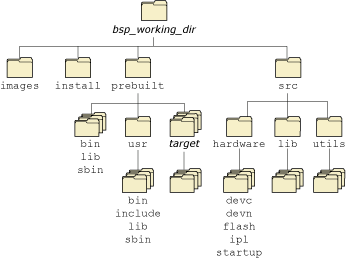
BSP directory structure.
In our documentation, we refer to the directory where you've installed a BSP (e.g. /home/myID/my_BSPs/integrator) as the bsp_working_dir. This directory includes the following subdirectories:
The images subdirectory is where the resultant boot images are placed. It contains (as a minimum) the Makefile needed to build the image(s). Other files that could reside in this directory include:
The prebuilt subdirectory contains prebuilt binaries, and header files that are shipped with the BSP.
Before the BSP is built, all of the files from the prebuilt directory are copied into the install directory, maintaining the path structure.
In order to handle dependencies, the libraries, headers, and other files found in the ./prebuilt directory need to be copied correctly to your ./install directory. To do this, you'll need to run make at the bsp_working_dir directory level.
The “root” of the prebuilt directory requires the same structure as the system root. The target-specific and usr directories mirror the structure of /.
|
All processor-specific binaries are located under the directory named for that processor type. |
For example, the prebuilt directory might look like this:
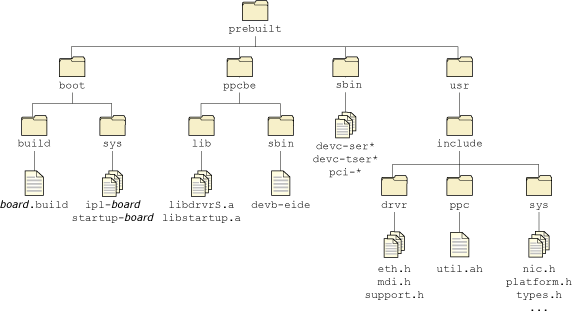
A sample prebuilt directory.
The install directory gets populated at the beginning of the BSP build process. All the files in the prebuilt directory are copied, then all generated binaries are installed here as they're compiled. The files stored in the install directory are taken first when mkifs executes.
Before you make any components for your particular board, you must first make the BSP sources at the top level:
cd bsp_working_dir
make
This builds everything under ./src and sets up the ./install and ./images subdirectories correctly.
After this initial build is complete, you can build any of the source files individually.
|
If you change a library or header, be sure to run make install to rebuild the source and copy the changes to your ./install directory. |
The BSP-specific source code is stored in this directory. Refer to the BSP release notes to find the location of the source code for a specific driver.
The hardware directory contains separate directories for character, flash, and network drivers, IPL, startup code, and so on, depending on the BSP.
|
The src directory contains one or more master buildfiles, typically src/hardware/startup/boards/board/build. During make install the build files are copied to install/target/boot/build/board.build. After the root Makefile will make a link to, or make a copy of these files in the images subdirectory. Care is required to modify the correct buildfile and to avoid losing changes to a buildfile. |
The lib directory contains separate directories for libraries that are required by driver and other utilities that are included with the BSP.
|
Some drivers, such as the network drivers or USB host controller drivers, are implemented as shared objects, but the source code for them is located under the hardware directory. |
The utils directory contains separate directories for minor utilities that are required on the board. Some hardware-specific utilities can also be found in hardware/support.
The services directory contains separate directories for additional services that aren't included in the base installation.
|
When you build a BSP from the source code, you may occasionally observe
warnings from some of the tools used to generate the BSP, such as:
These warnings result when information that's contained in one particular file format (endian ness, CPU architecture, etc.) can't be retained when converting that file to a different format, or when the originating file format doesn't contain information that the tool doing the conversion expects. These warnings are normal and expected, and are no cause for concern. |
In order to build a BSP from the command line, you must go to the root directory for the BSP.
Use the make command to build the source code. The Makefile defines the following targets:
If you don't specify a target, make invokes the all target.
|
We recommend that you use make to build the OS image. If you use mkifs directly, you need to use the -r option to specify where to find the binaries. For more information, see the entry for mkifs in the Utilities Reference. |
All boards have some devices, whether they're input, serial, flash, or PCI. Every BSP includes a buildfile that you can use to generate an OS image that will run on the board it was written for. The buildfile is in the bsp_working_dir/src/hardware/startup/boards/board directory.
A BSP's buildfile contains the commands — possibly commented out — for starting the drivers associated with the devices. You will need to edit the buildfile to modify or uncomment these commands. If you uncomment a command, make sure you uncomment the lines that add any required binaries to the image.
For more information, see the documentation for each BSP, as well as the buildfile itself; for general information about buildfiles, see the entry for mkifs in the Utilities Reference.
Once you've modified the buildfile, follow the instructions given earlier in this chapter for building an OS image.
Once you've built an OS image, you'll need to transfer it to your board.
The IDE lets you communicate with your target and download your OS image using either a serial connection, or a network connection using the Trivial File Transfer Protocol (TFTP). If your board doesn't have a ROM monitor, you probably can't use the download services in the IDE; you'll have to get the image onto the board some other way (e.g. JTAG).
There are several ways to transfer an OS image:
| To: | Use the: |
|---|---|
| Load an image from your network (e.g. TFTP) | Network |
| Load an image serially (e.g. COM1, COM2) | ROM monitor |
| Burn both the IPL and the OS image into the flash boot ROM, then boot entirely from flash | IPL and OS |
| Burn an IPL (Initial Program Loader) into the flash boot ROM, then load the OS image serially | IPL and boot ROM |
| Generate a flash filesystem, and then place various files and utilities within it | Flash filesystem |
The method you use to transfer an OS image depends on what comes with the board. The BSP contains information describing the method that you can use for each particular board. Each board will have all or some of these options for you to use.
To load an image serially:
To transfer a file using the Serial Terminal view:
The flash filesystem drivers implement a POSIX-like filesystem on NOR flash memory devices. The flash filesystem drivers are standalone executables that contain both the flash filesystem code and the flash device code. There are versions of the flash filesystem driver for different embedded systems hardware as well as PCMCIA memory cards.
The naming convention for the drivers is devf-system, where system describes the embedded system. For example, the devf-800fads driver is for the 800FADS PowerPC evaluation board.
To find out what flash devices we currently support, please refer to the following sources:
The flash filesystem drivers support one or more logical flash drives. Each logical drive is called a socket, which consists of a contiguous and homogeneous region of flash memory. For example, in a system containing two different types of flash device at different addresses, where one flash device is used for the boot image and the other for the flash filesystem, each flash device would appear in a different socket.
Each socket may be divided into one or more partitions. Two types of partitions are supported:
A raw partition in the socket is any partition that doesn't contain a flash filesystem. The flash filesystem driver doesn't recognize any filesystem types other than the flash filesystem. A raw partition may contain an image filesystem or some application-specific data.
The flash filesystem uses a raw mountpoint to provide access to any partitions on the flash that aren't flash filesystem partitions. Note that the flash filesystem partitions are available as raw partitions as well.
A flash filesystem partition contains the POSIX-like flash filesystem, which uses a QNX-proprietary format to store the filesystem data on the flash devices. This format isn't compatible with either the Microsoft FFS2 or PCMCIA FTL specification.
The flash filesystem allows files and directories to be freely created and deleted. It recovers space from deleted files using a reclaim mechanism similar to garbage collection.
The flash filesystem supports all the standard POSIX utilities such as ls, mkdir, rm, ln, mv, and cp. There are also some QNX Neutrino utilities for managing the flash filesystem:
The flash filesystem supports all the standard POSIX I/O functions such as open(), close(), read(), and write(). Special functions such as erasing are supported using the devctl() function.
Each BSP contains the binary and the source code for the appropriate flash filesystem driver, but the QNX Software Development Platform contains the associated header files and libraries.
Typing make in the bsp_working_dir generates the flash filesystem binary. Normally, you won't need to remake the flash filesystem driver unless you've changed the size or configuration of the flash on the board — this can include the number of parts, size of parts, type of parts, interleave, etc.
|
When an IPL/IFS (image filesystem) image is combined, you'll need to offset the beginning of the flash filesystem by at least the size of the IPL and IFS. For example, if the combined IPL/IFS image is loaded at offset 0 on the flash, to avoid overwriting the IPL and IFS, the flash filesystem must begin at an offset of the IPL/IFS image size +1. If it doesn't begin at an offset of the IPL/IFS image size +1, you'll need to create a partition. |
Regardless of which BSP you're working with, the procedure requires that you:
|
The following example applies specifically to the Renesas Biscayne board, which can be booted from DMON or flash. |
devf-generic -s0xe8000000,32M &
devf-generic -s0x0,32M
You should now see an fs0p0 entry under /dev.
flashctl -p/dev/fs0 -ev
flashctl -p/dev/fs0p0 -f
slay devf-generic
devf-generic &
You should now see the following entries:
| Entry | Description |
|---|---|
| /dev/fs0p0 | OS image (32 MB) |
| /dev/fs0p1 | Flash filesystem partition (32 MB) |
You can test Neutrino simply by executing any shell builtin command or any command residing within the OS image. For example, type:
ls
You'll see a directory listing, since the ls command has been provided in the default system image.
For instructions on adding the Photon microGUI to your embedded system, see the documentation for the particular BSP; the buildfile could include the specific commands (commented out) that you need to run. For even more details, see the “Photon in Embedded Systems” appendix in the Photon Programmer's Guide.
Now that you have a better understanding of how BSPs work in an embedded system, you'll want to start working on your applications. The following table contains references to the QNX documentation that may help you find the information you'll need to get going.
| For information on: | Go to: |
|---|---|
| Writing “hello world” | The section “A simple example” in the chapter Compiling and Debugging in the Neutrino Programmer's Guide, or the IDE User's Guide. |
| Debugging your programs | The section “Debugging” in the chapter Compiling and Debugging in the Neutrino Programmer's Guide. |
| Setting up NFS | The section “Complete example — TCP/IP with network filesystem” in the appendix Sample Buildfiles in this manual. See also the fs-nfs3 utility page in the Utilities Reference. |
| Setting up an Ethernet driver | The section “Complete example — TCP/IP with network filesystem” in the appendix Sample Buildfiles in this manual. See also the various network drivers (devn*, devnp-*) in the Utilities Reference. |
| Writing device drivers and/or resource managers | Writing a Resource Manager |
If you need more information, see these chapters in this guide:
| For more information on: | Go to: |
|---|---|
| Building flash filesystems | Customizing the Flash Filesystem |
| IPL | Writing an IPL program |
| Startup | Customizing Image Startup Programs |
In QNX Neutrino BSPs, we use the following conventions for naming files:
| Part of filename | Description | Example |
|---|---|---|
| .bin | Suffix for binary format file | ifs-artesyn.bin |
| .build | Suffix for buildfile | sandpoint.build |
| efs- | Prefix for QNX Embedded Filesystem file; generated by mkefs | efs-sengine.srec |
| .elf | Suffix for ELF (Executable and Linking Format) file | ipl-ifs-mbx800.elf |
| ifs- | Prefix for QNX Image Filesystem file; generated by mkifs | ifs-800fads.elf |
| ipl- | Prefix for IPL (Initial Program Loader) file | ipl-eagle.srec |
| .openbios | Suffix for OpenBIOS format file | ifs-walnut.openbios |
| .prepboot | Suffix for Motorola PRePboot format file | ifs-prpmc800.prepboot |
| .srec | Suffix for S-record format file | ifs-malta.srec |
|
|
|
|